


unlock payment optimization
Unify payment data across every channel
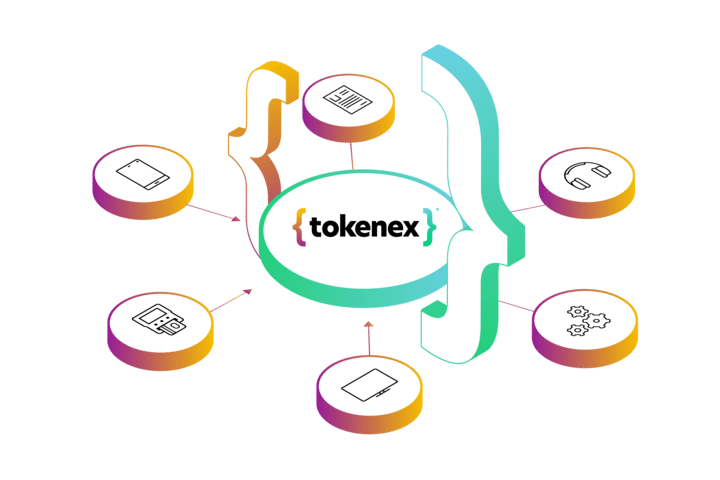
Get a PCI-validated P2PE Solution that reduces PCI scope by up to 90% and unifies payment data across all channels & processors. Reduce fraud, increase authorizations, and generate more revenue.
Trusted by





Your Payment Security
and Optimization Partner

PCI Compliance Simplified
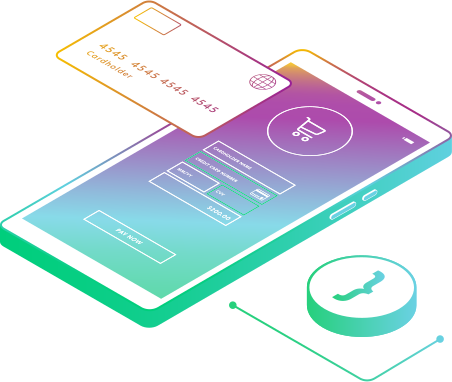
Payment Card Industry Data Security Standard (PCI DSS) audits consume valuable time and resources, with over 200 evolving requirements to keep up with. Building and maintaining a PCI-compliant infrastructure comes with substantial costs, alongside the inherent risks of storing payment information internally.
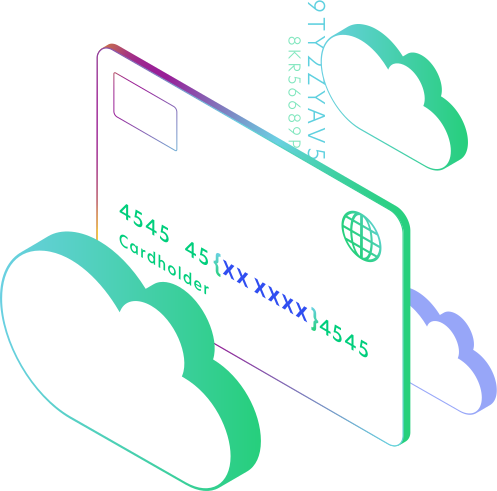
TokenEx offers a solution by reducing PCI scope by up to 90%. Tokenization ensures that payment data isn’t stored internally, eliminating the need for a Cardholder Data Environment. The risk of data breaches is minimized, as tokens hold no value for hackers. Businesses can still analyze essential payment data for insights and tracking, all while reducing the hardware, software, and staff expenses associated with maintaining PCI compliance.
Success stories, such as Pay N Seconds who reduced their PCI scope by 75 percent and saved 33 percent on compliance costs, showcase the tangible benefits of tokenization for PCI compliance.

Processor Flexibility
The complexities of managing multiple payment processors often burden businesses. With processors owning the data, companies spend time managing data across various silos. Adding or changing processors becomes challenging, requiring significant modifications to systems. This lack of control over payment data can hinder customer insights, as transactions are scattered across different platforms.
TokenEx provides a solution by offering a unified payment token for all channels and processors. This empowers businesses with ownership of their payment data, enabling easier switching between processors and seamless scaling. Companies can now focus more on their core operations, free from concerns about payment data security.
Success stories, such as TiloPay’s ability to offer 90 to 95 percent more products and services due to increased payment flexibility with TokenEx, highlight the advantages of simplified payment processor management.

Payment Optimization
Maximizing revenue and efficiency in payment processing is a challenge for every business. These challenges can include revenue loss from outdated card information, high interchange costs, and complex integrations for compliance with regulations like PSD2.
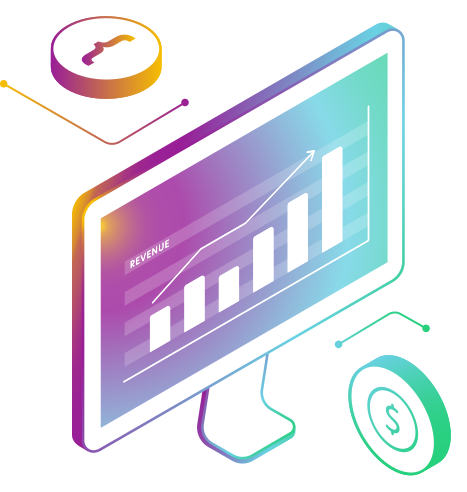
TokenEx offers a comprehensive solution for these payment optimization challenges, becoming the “one source of truth” for all payment data. This improved access to detailed card data empowers better payment decisions. With TokenEx, businesses can automatically accept or block payments based on fraud scores, boosting transaction confidence. Compliance with regulations like PSD2 becomes straightforward, and additional authentication layers improve authorization rates, lowering interchange costs.
VIVRI’s success story showcases TokenEx’s impact on payment optimization. They increased authorization rates by 10 to 15 percent, grew monthly revenue by 5 to 7 percent, and reduced the time to enter a new market from 2 months to 2 weeks.
How it works
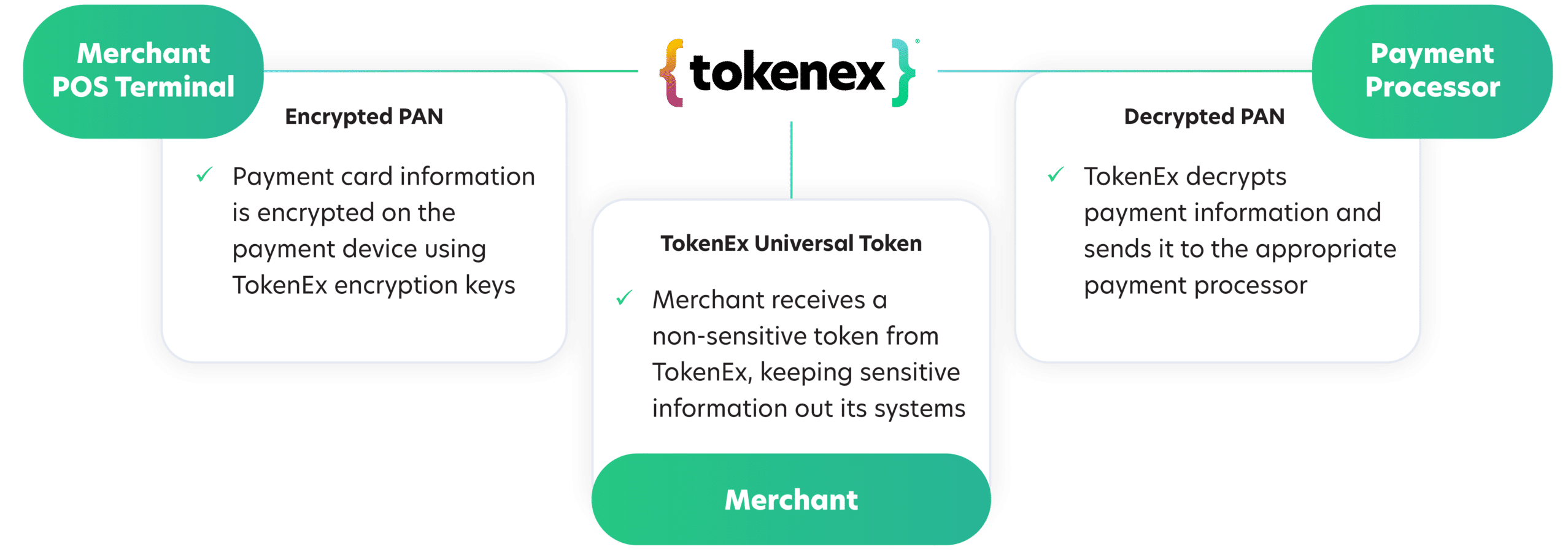
Your data is your business.
See why it matters.

Customer testimonials
“By instead working with TokenEx to create a cloud token environment independent of our internal systems and PSP, we were able to retain ownership of our tokens, leverage those tokens to build consumer profiles for future payments, and reduce scope by 75 percent and save 33 percent on compliance.”

Theron Hatch
Chief Information Officer, Pay N Seconds
“By working with TokenEx, we processed more payments, increased authorization rates by 10 to 15 percentage points, increased revenue by 5% to 7%, and reduced PCI scope.”

Fernando Flores
IT Director, VIVRI
“Before TokenEx, we weren’t offering 90 to 95 percent of the services and products that we have right now. It was a different company.”

Henry Nanne
CTO, TiloPay
“Without using TokenEx, we would either have something that was completely wedded to a payment gateway, or we would have had to build in a sort of spiraling code base to keep adding in more and more libraries since each gateway has its own way of doing things and its own way of tokenizing cards.”

Matt Bush
CTO and Co-founder, Trust My Travel
“We never touch any payment data in our contact centers, retail stores, websites, or in the field. That’s a big relief.”

Tyson Martin
Chief Information Security Officer, Orvis
See our latest news and updates.
Visit the TokenEx blog for content on payment optimization, PCI DSS compliance, and more.